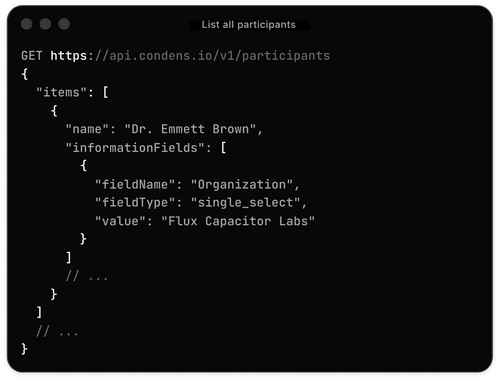
Condens API lets you automate data flows and build custom integrations
See how your customer knowledge can reach every tool and system your org runs on without the manual work.

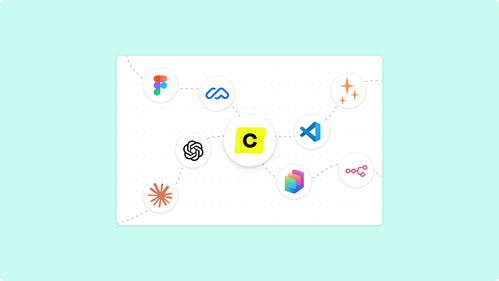
The quality of what an AI assistant produces depends directly on what it knows going in. For product, design, and research teams, that knowledge accumulates in Condens with every study, interview, and piece of feedback. Connected to your repository, the AI can draw on everything your team has learned about your users rather than working from general assumptions.
The Condens MCP Server gives any compatible AI tool direct, read-only access to your published research. That means you can ask questions about your findings in Claude or ChatGPT, have an AI agent pull from your repository mid-workflow, generate designs in Figma grounded in usability testing, or write code knowing exactly what your users have said about the problem you're solving.
Let's dive into this product update!
In case you missed the Condens API product update, check it out on the link below:
If you haven't come across the term before, here's the short version.
MCP (Model Context Protocol) is an open standard that lets AI tools securely connect to external data sources. Instead of an AI working from its training data alone, or from whatever text you paste into a conversation, it can pull live, structured information from a connected system and use that as context for its responses.
Think of it like the difference between asking a colleague a question when they're working from memory, versus asking them the same question when they have your research repository open in front of them. The question is the same. The quality of the answer is different.
MCP is what makes that second scenario possible, at scale, across the AI tools your team already uses. It's a standardized interface, which means any AI tool that supports MCP can connect to any data source that implements it — including Condens.
Once you connect Condens to an MCP-compatible AI tool, you can ask questions about your research in natural language and get answers pulled from your actual published Artifacts.
You can query across multiple Condens workspaces at once and combine Condens with other MCP-connected sources, like Notion, Jira, Linear, or whatever else your team uses. That gives the AI richer context to work from: your research findings, product roadmap, project tracker, and more, all in the same conversation.
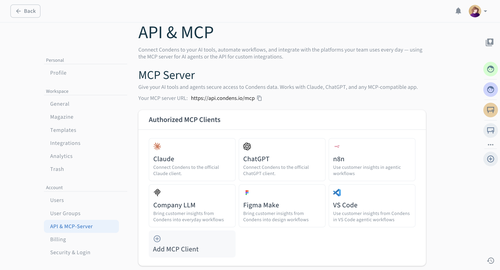
The Condens MCP Server is read-only. AI tools connected through it can retrieve published Artifacts; they cannot create, edit, or delete anything in your workspace.
A Condens Admin enables the MCP Server for the workspace and controls who it's available to by user, role, or user group. Each authorized user then connects their own account individually, which is what keeps access consistent with what they already see in Condens. For example, if someone doesn't have permission to view a project, that project won't surface through their AI tool either.
Each integration has its own setup method, and some are available only on specific Condens plans. You'll find plan details and setup instructions for each one in the sections below.
Here's what connecting Condens makes possible, tool by tool.
If your team uses Claude or ChatGPT as a day-to-day AI assistant, connecting Condens is the most direct way to give those tools access to your customer knowledge.
Once connected, you can ask questions like: "What navigation issues came up most often in our usability testing?" or "What did users say about the onboarding experience in the last quarter?" and get answers grounded in your actual published insights. You can combine Condens with other connected sources in the same conversation. For example, asking your AI to cross-reference a research finding with a Notion roadmap item or a Jira ticket.
This is useful for anyone on the team who consumes research, not just researchers:
A Product Manager who wants to check what users said before a sprint planning session.
A Designer who wants to understand what pain points came up in the last round of usability testing before starting on a redesign.
A Sales Executive who wants to know what friction points users have reported in the area a prospect is asking about.
A Customer Success Manager who wants to check whether a complaint they're hearing repeatedly has already been researched before escalating it.
A Marketing Manager who wants to make sure a campaign claim is backed by actual user feedback.
Connecting Condens to your AI assistant brings research into the conversations where decisions are already happening, alongside everything else the AI has access to.
→ Read the Claude setup guide | → Read the ChatGPT setup guide
Some organizations run their own large language models internally, or have built custom AI tooling on top of a foundation model. If that infrastructure supports MCP, you can connect it to Condens.
This means your internal AI can answer questions about what users have said, surface relevant findings, and bring research into whatever workflows it's already part of using the same knowledge base your research team maintains in Condens.
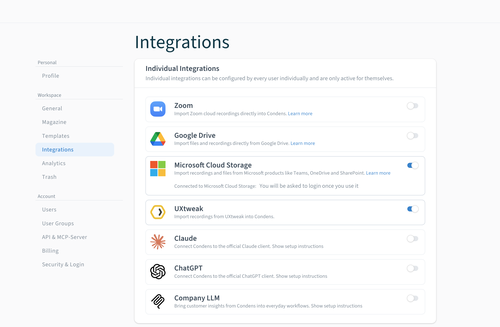
→ Read the custom MCP setup guide
Figma Make is Figma's AI-powered app builder. It lets designers and product teams generate UI from natural language prompts, and iterate quickly on prototypes and flows.
Connecting Condens to Figma Make means those AI-generated designs can be grounded in real user research from the start. Instead of prompting Figma Make with a general description of what you want to build, you can pull in specific usability findings, user needs, or pain points from your Condens workspace as part of the conversation. The AI has access to what your users actually said and experienced, not just what you've described from memory.
In practice: if usability testing surfaced recurring confusion in a navigation flow, you can reference that directly as you're asking Figma Make to redesign the component. If research revealed that users on mobile consistently struggled with a specific interaction pattern, that context is already part of your design process, without you having to restate it.
This is especially relevant for designers who are already working in Condens to review research outputs, and want to close the gap between "what we learned" and "what we're building."
→ Read the Figma Make setup guide
For teams that want to go beyond conversational queries and build AI agents with more complex, multi-step behavior, n8n and Copilot Studio let you connect Condens as a live data source that agents can query mid-task.
In n8n, the recommended setup uses an AI Agent node with Condens connected as an MCP tool. This means that, rather than just following a fixed workflow, the agent can decide when to query Condens based on what it's working on and use what it finds to inform what it does next.
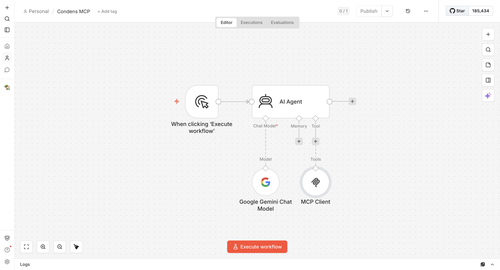
For example, you could set up agents that:
Pulls relevant research findings while writing a product brief
Checks user feedback about a topic before responding to a stakeholder's question
Looks up related usability findings when cross-referencing a roadmap item
The result is an agent that gives answers grounded in what your customers have actually said, not just what the model knows in general.
Microsoft Copilot Studio lets you build custom AI agents on top of Microsoft's infrastructure. Connecting Condens via the MCP Server gives those agents access to your published research, so they can query findings and surface insights as part of whatever task they're designed to handle.
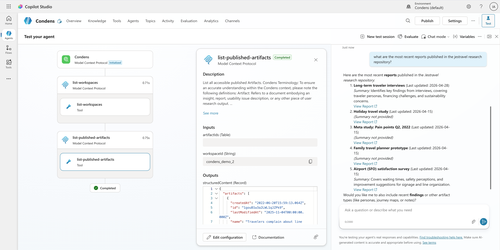
This is a good fit for enterprise teams that are already standardized on Microsoft's tooling and want to build internal research assistants, support agents, or decision-support tools that can draw on Condens as a knowledge source.
→ Read the Copilot Studio setup guide
Developers working in AI-assisted coding environments can now bring research context directly into their workflow, without switching tools mid-session.
With Condens connected via MCP in Claude Code or VS Code (with GitHub Copilot or another MCP-compatible agent), you can pull in relevant user research while you're working:
Ask what users struggled with in a specific flow before implementing it
Reference accessibility findings from usability testing while writing the component
Check whether a feature you're building has come up in past research
The research is available in the same environment where you're writing the code.
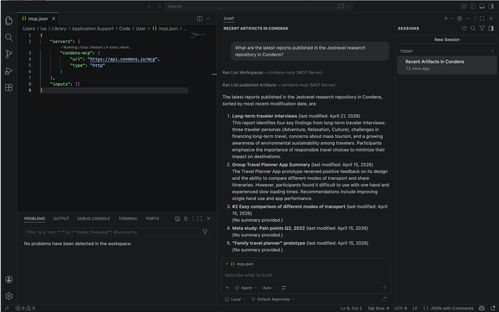
→ Read the Claude Code setup guide | → Read the VS Code setup guide
The Condens MCP Server is available starting from the Business plan for Claude and ChatGPT connections, and on the Enterprise plan for all other integrations. You'll find MCP settings in your workspace under Settings > Account > API & MCP Server. Every connection you make here means your AI tools are working from the same customer knowledge your team has built up in Condens, and that knowledge only gets more valuable the more you add to it.
Use the links in this article for the connection you want to start with, or head over to our Help Center. If you ever feel stuck or have additional questions, reach out to us at hello@condens.io!

Iva is the Senior Product Marketing Manager at Condens, where she focuses on positioning, messaging, and G2M. With eight years in B2B SaaS, she's developed a real appreciation for the messy, ambiguous early stages of building where there's no playbook yet and the work gets to shape itself. She's passionate about grounding marketing in real customer insight and translating that into work that resonates with the people it's meant to reach.