
How it works
You can give Condens AI context at three levels:
Workspace AI Context, for information about your company that applies to all research
Project specific context, for the goals and research questions of one Project
Magazine specific context, for the topics of one Magazine and how your stakeholders refer to them
Condens AI uses the workspace and Project context in all its generative AI features, such as AI search, Highlight suggestions, summaries, Bookmarks and clustering on the Whiteboard. The Magazine context is only used in the AI search of that Magazine.

Your context is only used as background. Condens AI never presents it as a finding or cites it as a source.
Workspace AI Context
By default, Admins and Contributors can edit the Workspace AI Context. If Restrict workspace-wide configuration to Administrators is enabled, only Admins can.
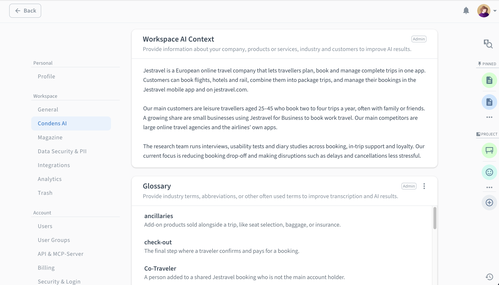
To add workspace-level context:
Go to
 Settings and select Condens AI.
In Workspace AI Context, describe your company, its products or services, its industry and its customers.
Keep it short, like an elevator pitch: just enough for someone who doesn't know your company to understand what it does. The context can have up to 2,000 characters.
Project specific context
Admins, Contributors and Limited Access Contributors with access to the Project can edit its context. Viewers can see it but can't change it.
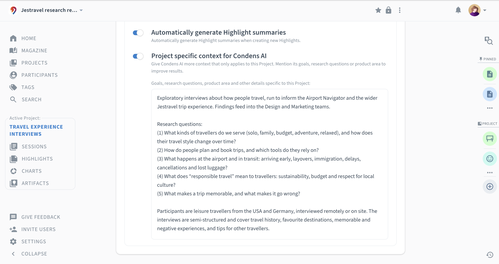
To add project-level context:
Open a Project and select the Project Settings tab.
Under Condens AI, turn on Project-specific context for Condens AI.
Describe what this Project is about, such as its goals, research questions, the product area it covers and who the participants are.
Already filled in the Project Details? Click  Generate from Project description and Condens AI writes the context for you. You can then edit it.
Keep the levels separate. Information about your company belongs in the Workspace AI Context; the Project context only needs what's specific to this Project.
Magazine specific context
By default, Admins and Contributors can edit the context of a Magazine. If Restrict workspace-wide configuration to Administrators is enabled, only Admins can.
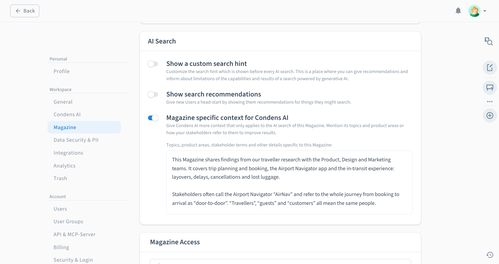
To add Magazine-level context:
Go to
Settings and select Magazine. If you have more than one Magazine, select it at the top.Under AI Search, turn on Magazine specific context for Condens AI.
Describe what this Magazine is about, such as the topics and product areas it covers and how your stakeholders refer to them.
The AI search of the Magazine uses this context together with the Workspace AI Context, so it only needs what's specific to this Magazine. You can also add it right away when you create a new Magazine.
AI context or Glossary?
You'll find the Glossary right below the Workspace AI Context in Settings > Condens AI. Both help Condens understand your company better, but they do different jobs:
AI context explains what your company and research are about, in a few sentences. Condens AI uses it in summaries, AI search, Highlight suggestions and other generative AI features.
Glossary lists the words your team uses: brand and product names, abbreviations and jargon. It makes sure transcription spells these terms correctly.
They work best together. For example, add your product names to the Glossary so they show up correctly in your transcripts, and explain in the AI context what those products do. Learn more about the Glossary.