
Database of participants
Go to  Participants in the menu on the left to see the list of participants. Clicking on a participant will show participant information, attached files and the history of interaction with that person.
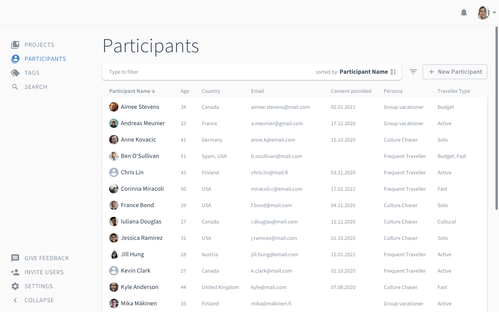
Participant information fields
Participant information fields let you enter structured information for the people in the Participant Pool. This enables several use cases such as:
Storing contact information like email or phone number centrally accessible for the research team
Tracking administrative tasks like whether a consent form was signed or how much compensation was paid to monitor tax thresholds
Quickly finding participants for the next study e.g. based on user segment, products they use, their preferred device type, company size or industry.
Adding custom fields
You can add custom participant information fields to track the data that is relevant to your organization. When you create a new information field, it's automatically added to the template and makes it visible for existing and new participants. This ensures data consistency across your Participant Pool.
The search bar in the Participants tab lets you find people based on participant information or change the way the list is sorted.
Managing field permissions
Admins in Condens always have the ability to add and modify information fields.
For granular control, you can specify which users or user groups can edit the field type, details, and even more specifically, categories. These settings can be set per field, meaning that you can set different permissions for different fields based on your team's needs.
For single-select and multi-select fields, you can grant users permission to edit only the category options without giving them full field editing rights. This is useful when you want team members to add new options to a dropdown without letting them modify the field structure itself.

Connect participants to sessions
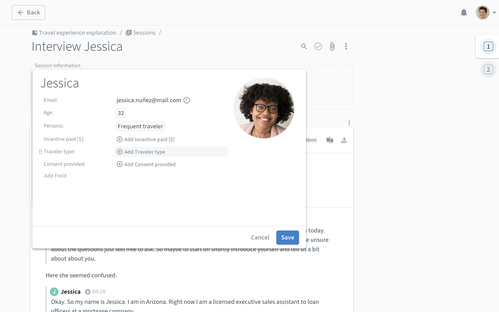
Every session in a research project has as a session information field. You can use it to create a new participant directly from there or connect an existing participant to that session. Linking a research session to a participant makes this session appear in the history of interactions with that person.
A session can have multiple participants associated with it e.g. for group interviews.
Data segmentation across projects
You can use participant information to filter and segment research data not only within a research project but also across projects. This enables to answer overarching questions like 'What are the pain points of our most frequent users?' or 'What are the most common feature requests of our financial industry customers?'.
Note: You can use data segmentation even if you don't use the peoples' real names for the Participant Pool. Just enter a pseudonym for the name and use non-personally identifiable information like industry or persona for the participant information fields.
Bulk-edit participants
Select participants in the participant panel and select the bulk action in the bar on the top.
Bulk upload participant data
When you have structured research data from a participant panel list already available, you can bulk-import this data and create multiple Participants at once.
We support bulk-importing for CSV, Excel, or Google Sheets files. Find a detailed step-by-step guide on bulk uploading participant data here.
Bulk update participant fields
If you have a spreadsheet file with your updated participant list, you can import it and bulk update your participant pool without duplicating existing ones.
To do that, choose a column to act as the unique identifier by clicking the button next to it. This could be the Condens ID (if available, e.g. from a previous export), or another unique field like email or full name. If the ID value matches an existing participant, their information will be updated. If the value doesn’t exist yet, a new participant will be created.